How do I create an order?
Create a manual customer order, add its recipient and products, and resolve the checks that prevent it from being saved.
Before you start
Sign in to the correct organisation with permission to create orders. Have the order date, recipient details and product names or SKUs ready. You can use catalogue products or enter a custom order line.
Steps
Open order creation
Open the order-entry workspace using Open order creation below. Its sections are Info, Customer, Products, Operations and Documents. The Order summary shows the current draft and its checks.
Check the order details
In Info, review the generated Order number and Ordered at date. Select the Sales channel when one applies. Enter an External reference if needed. If you enter an Order total amount, also check the Order currency; these describe the order total, not customs values.
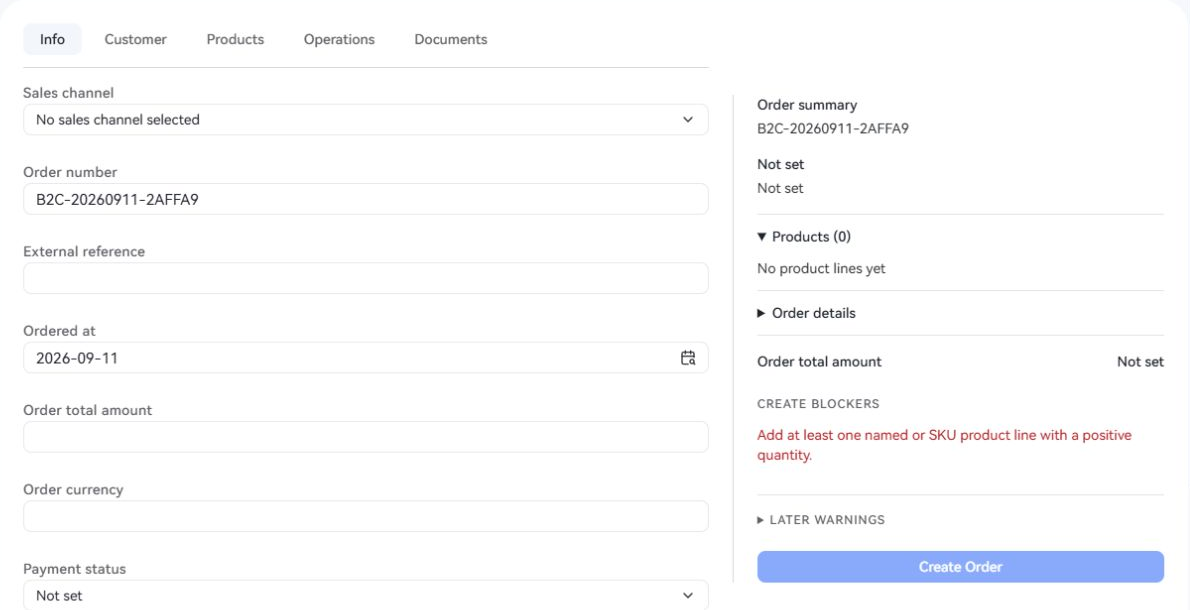
Info holds the order details. The summary on the right shows what still prevents saving. Add the recipient
In Customer, choose Select CRM customer or Enter customer manually. Review the recipient name, contact details and delivery address, then confirm the selection. Use manual details saves the recipient in this order without creating a CRM customer.
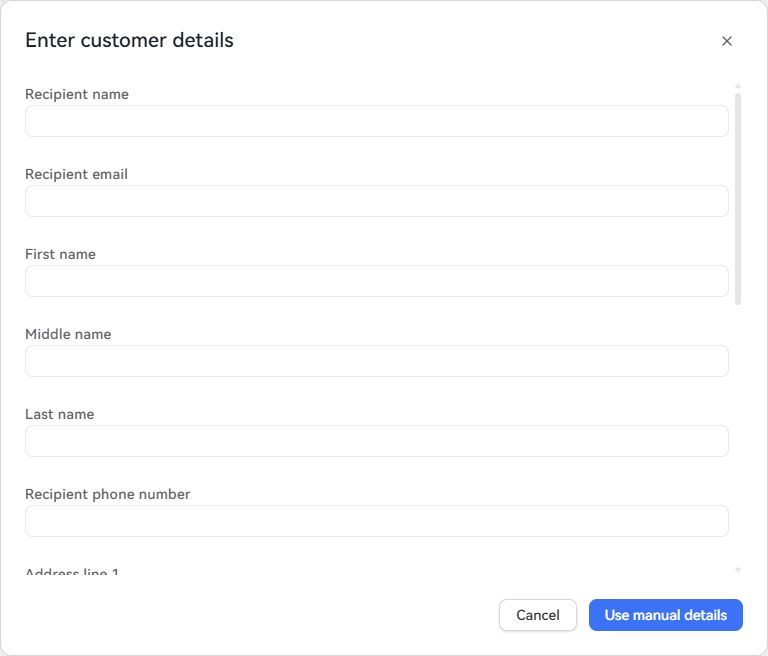
Enter customer manually opens this dialog. Scroll to the address fields, then choose Use manual details. Add products
In Products, choose Browse catalogue to select products, or Add custom line to enter a product title or SKU and confirm with Apply. Check each line's Quantity. At least one named or SKU product line with a quantity greater than zero is needed.
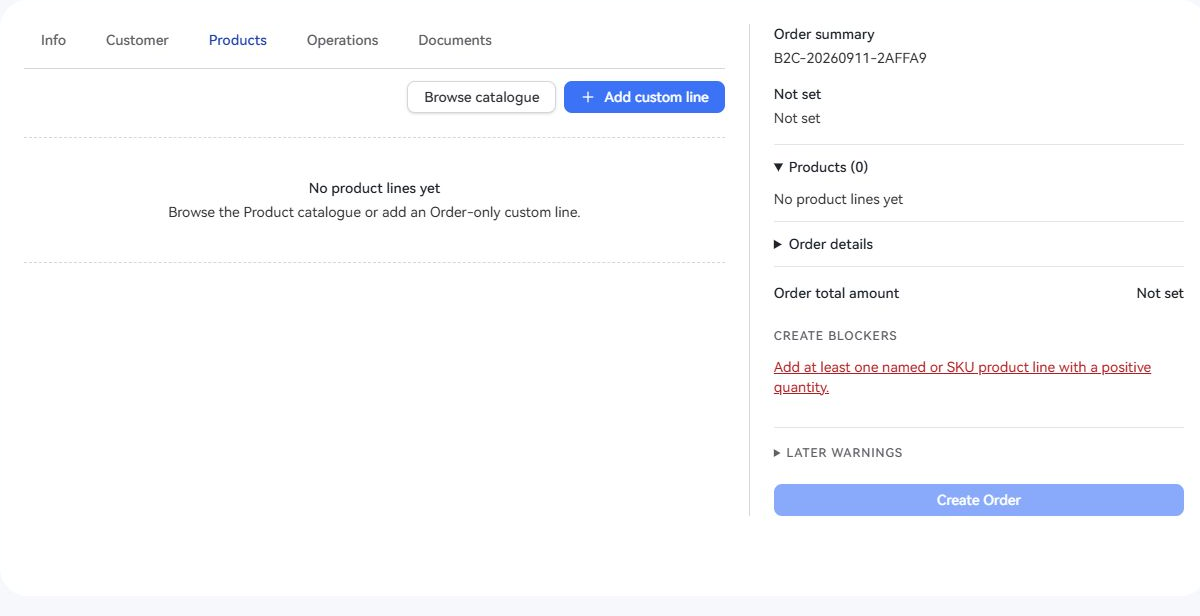
Choose a catalogue product or a custom line. The red blocker explains why an empty order cannot be created. Assign operations if needed
Use Operations when you need to assign a packaging owner, user, team, location or stock status. Review these values in the Order summary. Carrier setup, shipping services and label creation are handled later in Fulfillment.
Resolve the blockers
Review the Order summary. Resolve every Create blockers message; clicking a message opens the relevant section or field. Expand Later warnings to see information still needed for a later operation. Those warnings are separate from permission to create the order.
Create the order
When Create Order becomes available, click it and wait for Order created. Keep the order number so you can find the saved order in Orders and continue its Fulfillment workflow.
Expected result
The order has been saved when Order created is shown. Saving an order does not by itself confirm that it is ready for a shipping label; check its Fulfillment requirements before the next action.
If something goes wrong
- Create Order is disabled: read Create blockers. A common first blocker is an empty product list or a line without a product title/SKU and positive quantity.
- An amount or currenc...